
Most people who decide to “be more productive” on their iPhone start in the same place: downloading another app, getting excited for two days, then forgetting it exists. The problem usually isn’t the app itself. It’s that opening an app takes effort, and effort is exactly what you don’t have when you’re already distracted, scattered, or running five minutes behind on everything.
That’s where iPhone productivity widgets change the equation. Instead of requiring you to hunt down an app and wait for it to load, a widget puts the one function you actually need right on your home screen or lock screen, one tap away – or sometimes no tap at all. The difference sounds small. In practice, it removes enough friction that you actually use the thing.
The nine apps below were chosen because their widgets genuinely earn their place on a home screen. They come from different corners of the productivity world – task management, time blocking, habit tracking, focus, and even mental recovery – because real productivity isn’t just about your to-do list. It’s about the whole system that keeps you functional through a workday.
1. Opal

Opal is one of the top-rated screen time apps for iPhone and Mac, blocking apps, tracking usage, and giving you tools to focus. The premise is simple but surprisingly hard to replicate well: you tell it which apps you want blocked and when, and it makes accessing them genuinely difficult during your focus sessions.
You can pick the difficulty of your Opal session. Choose Normal and you can take breaks and cancel a session if needed. Choose Timeout and there are increasing delays before you can take another break. And if you pick Deep Focus, you can’t end the session early – you’re effectively locked out of the apps you’ve selected. That last mode is drastic, but for anyone who knows they’ll rationalize their way out of a softer block, it’s exactly the point.
When you tap Opal’s widget from your lock screen, it automatically opens Opal so you can start a session in a matter of seconds. The real value of having it as a widget is that the friction of starting a focus block drops to almost nothing. You see it, you tap it, you’re locked in. It’s a small shift that makes the whole habit more sustainable. Opal is free to download, with a Pro plan available for deeper blocking options and unlimited recurring sessions.
2. Todoist
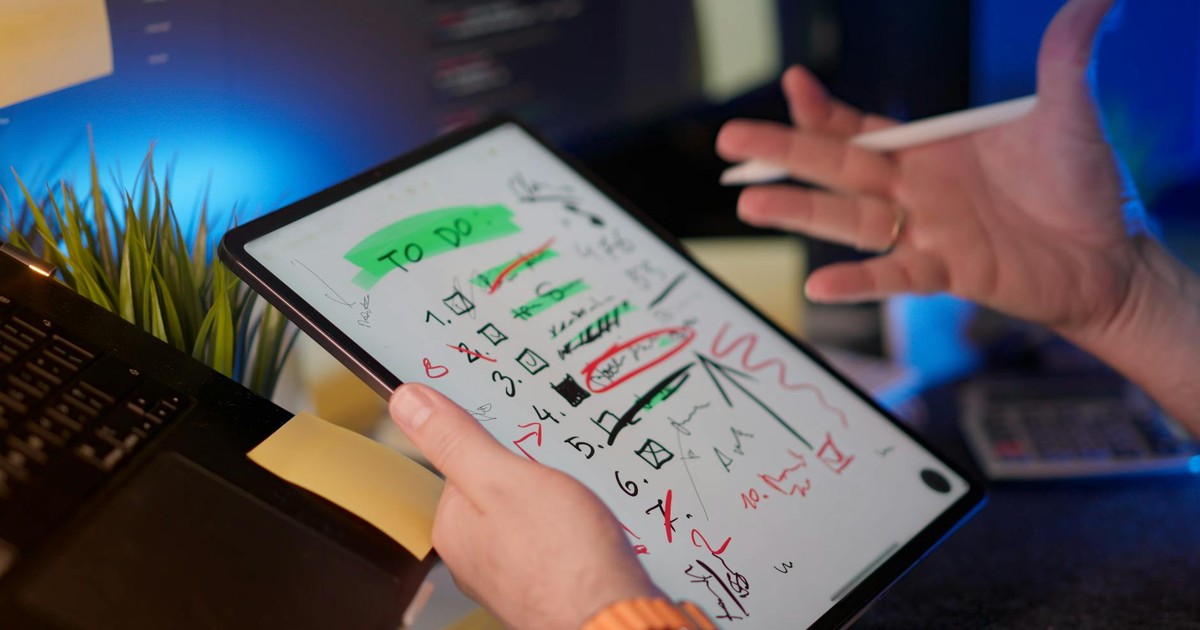
Task management apps live or die by how easy they make it to capture and act on a task in the moment. Todoist has been one of the strongest options in this space for years, and its widget suite is a big part of why.
According to Todoist’s help documentation, the widget turns your Apple device into a productivity center – whether you’re checking your list on your iPhone or managing projects on your Mac, it lets you add tasks quickly, check your goals, and see what’s due for today. You can add it to your desktop, home screen, or lock screen so you can see what’s next wherever you go.
When you set it up, you can swipe to choose the widget you want: a Tasks widget, a Productivity widget, or an Add Task widget. The Productivity widget gives you an overview of your current stats, like how close you are to reaching your daily or weekly goals, as well as your current Karma score. The Add Task widget is the one that earns its place most days – it opens Quick Add instantly, so the idea you just had while walking to a meeting doesn’t evaporate before you get to your desk. Todoist is free to download; a Pro subscription unlocks reminders and other advanced features.
3. MultiTimer
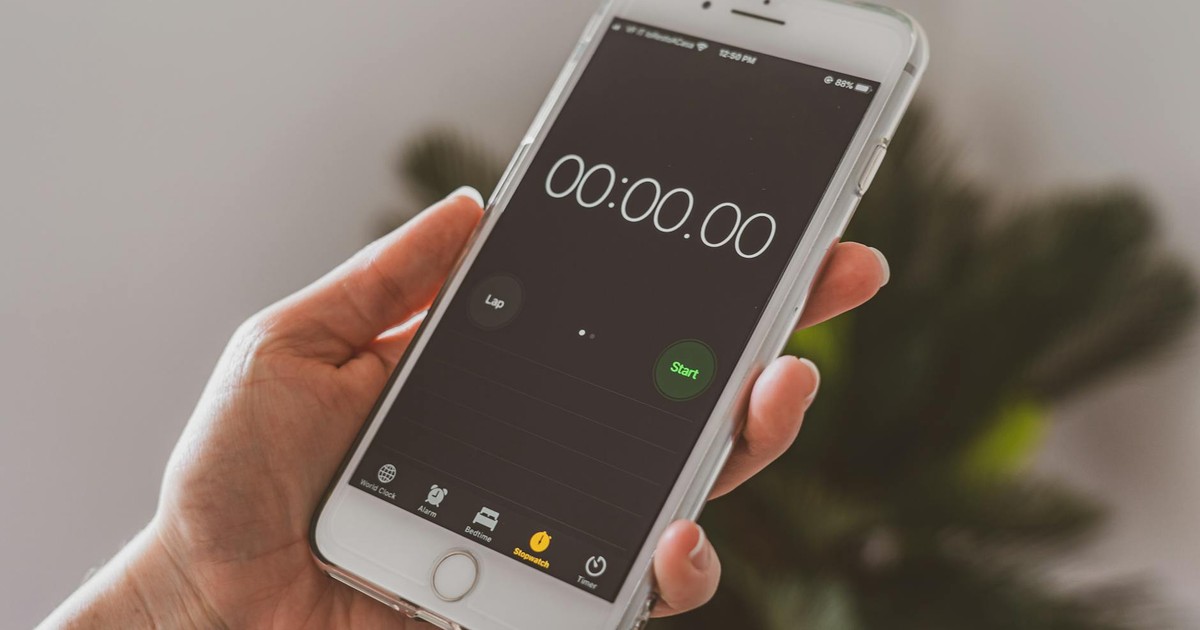
Time management gets talked about constantly and practiced rarely, usually because the tools for it require more setup than the work itself. MultiTimer is an effective tool for the time management side of productivity. With it, you can turn your iPhone into a customizable timer that manages your workflow with practices like the Pomodoro technique, tracking how much time you’ve worked and counting down until certain tasks are completed.
The Pomodoro technique, for those unfamiliar, is a method where you work in focused 25-minute blocks with short breaks in between. It works well for people who struggle to start tasks or who tend to overwork without noticing. MultiTimer is built around this kind of structured rhythm, but it’s flexible enough to handle anything from a cooking timer to a gym interval.
You can edit the color and label of each timer and set custom alerts. The free version supports up to 12 timers on one board. Upgrading to the Pro plan at $1.99 per month (or $17.99 as a one-time payment) unlocks unlimited boards and buttons to control multiple timers simultaneously. When you add the MultiTimer widget to your iPhone, you can choose to show all active timers or select specific ones to start and stop directly from your home or lock screen.
4. Calm

Productivity apps usually ignore the most obvious reason people underperform: they’re exhausted, anxious, or burned out before noon. Calm doesn’t pretend to be a task manager. It aims at the part of the problem that other apps skip over entirely.
You won’t be productive if you’re stressed or mentally drained. Healthline’s 2024 review confirms the app holds a 4.8-star rating on the Apple App Store, and it’s easy to see why – Calm offers guided meditations, breathing exercises, and sleep stories to guide you into a restful night.
Adding Calm’s widget gives you direct access to the specific routine you need for the time of day, the Daily Calm of the day, or the previous two Daily Calm sessions – making it easier to access these meditations when you really need a recharge. Signing up for Calm Premium unlocks the app’s full library, including the Daily Calm, a 10-minute guided meditation that’s new every day. If you’ve ever sat at your desk feeling too wired to concentrate and too tired to care, a two-minute breathing exercise on your lock screen is a more honest intervention than opening another productivity app.
5. Fantastical
Most calendar apps show you what’s happening. Fantastical also helps you understand it. According to Zapier’s guide to the best iPhone productivity apps, Fantastical is available exclusively for iPhone, iPad, and Mac – built entirely around Apple’s ecosystem. If you use Apple’s Calendar and Reminders apps, Fantastical can pull information from both and display them in a single interface. The app uses natural language input, so you can type events like “lunch with Chris tomorrow at noon” and it makes sense of it. It will even work out time zones for you.
The widget is where Fantastical’s scheduling intelligence becomes genuinely useful on a daily basis. It’s one of the most polished widgets available for appointments and events scheduled throughout your day. The Fantastical Calendar widget can also show tasks and upcoming events at a glance. You can customize it to show the current date, add Zoom calls, your event list for the day, or a full monthly calendar – and combine widget types like the Event List and monthly views. Upgrade to premium for $4.75/month, billed annually, to unlock unlimited calendars, collaboration, and meeting detection.
6. Notion

Notion sits in a different category from most apps on this list. It’s less a single tool and more an entire workspace that people use for everything from meeting notes to personal wikis to project tracking. It boosts productivity by creating a workspace to store all kinds of information and resources, which you can use to create projects and tasks for personal use or collaboration. The Free plan works well for individuals, but the Plus plan at $10 per month adds custom forms and unlimited file uploads, while the Business plan at $20 per month unlocks AI-powered features including the Notion Agent and AI Meeting Notes.
The widget brings a portion of that workspace to your home screen without requiring you to open the full app every time. You can surface a specific database, a set of tasks, or a quick-capture note field. For people who live in Notion for work, having a slice of it on the home screen closes the gap between having a system and actually using it. The most useful setup is usually a small widget tied to whatever you’re actively working on – your current project’s task list, or a simple capture field for ideas.
7. Streaks
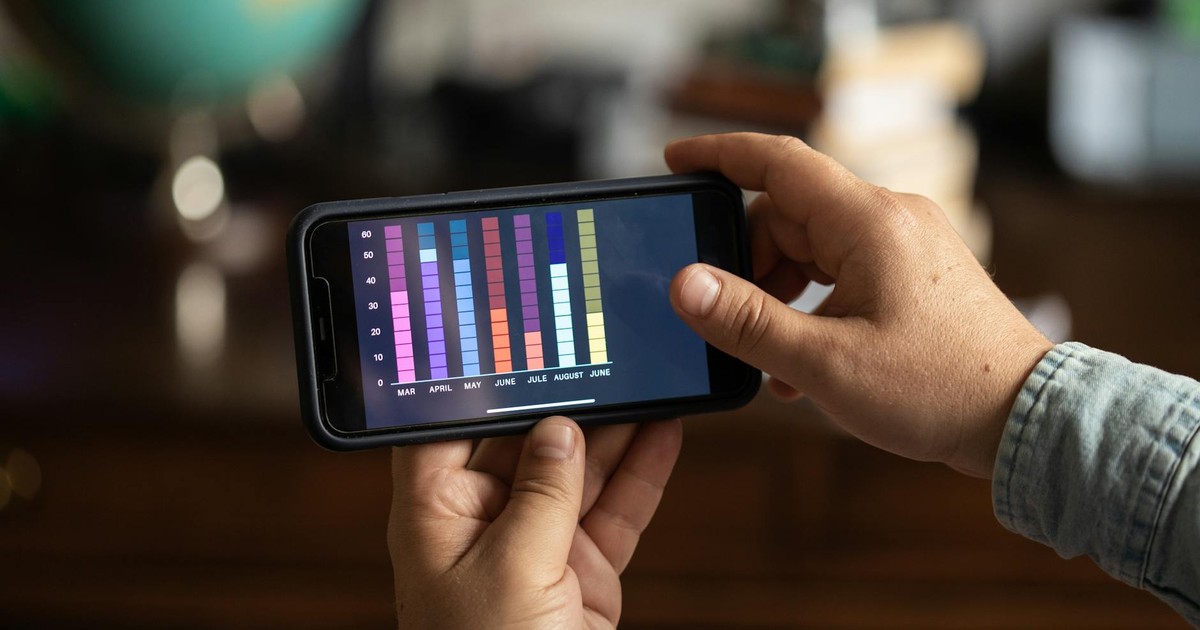
Habit-tracking apps for daily routines tend to be either too complicated or too shallow to stick with for more than a week. Streaks sits closer to the sweet spot. Zapier recognizes this Apple Design Award winner as an App Store mainstay that makes it easy to track up to 24 daily tasks. You create your own custom tasks, assign each a unique icon, and check them off in-app or using an interactive home screen widget. You can also use Apple Health data to automatically meet targets like a daily step count or energy burned.
Streaks works on the concept of consecutive-day streaks. It operates like a to-do list where you list the habits you want to cultivate, and each time you complete a task, your streak increases. The underlying logic is that consistency and repetition build habits – and the longer your streak runs, the more ingrained the behavior becomes.
The $5.99 purchase includes iPhone, iPad, Apple Watch, and a Mac app, with device syncing via iCloud. The home screen widget earns its place by doing one specific thing well: every time you glance at your phone, you see exactly where your streaks stand. That visual reminder is often enough pressure to keep the streak alive for one more day. And one more day, repeated often enough, becomes a habit you didn’t have before.
8. Toggl Track

Most people dramatically underestimate how much of their day disappears into things that feel like work but don’t actually move anything forward. Toggl Track is built for finding out where your time actually goes. You can start tracking with just a tap – no need to assign tasks, projects, or clients upfront. The app keeps things simple so you can focus on your work and sort out the details later.
Toggl Track works across platforms, including browser extensions for apps like Google Docs and Notion, so you can track time directly from the tools you’re already using. On iPhone, you get a streamlined experience with all the essential features on the go, plus reminders to stop the timer if you’ve forgotten. The widget reduces that friction even further – one tap to start a timer, one tap to stop it. No hunting for the app. No losing the thread of what you were doing.
The data Toggl Track surfaces over a week or two tends to be clarifying in ways that feel almost uncomfortable. The project you thought was taking two hours a day is taking four. The thing you told yourself you’d get to after lunch is consistently not happening until 4pm. You can’t fix a pattern you can’t see. That’s what this widget is really for.
9. Structured
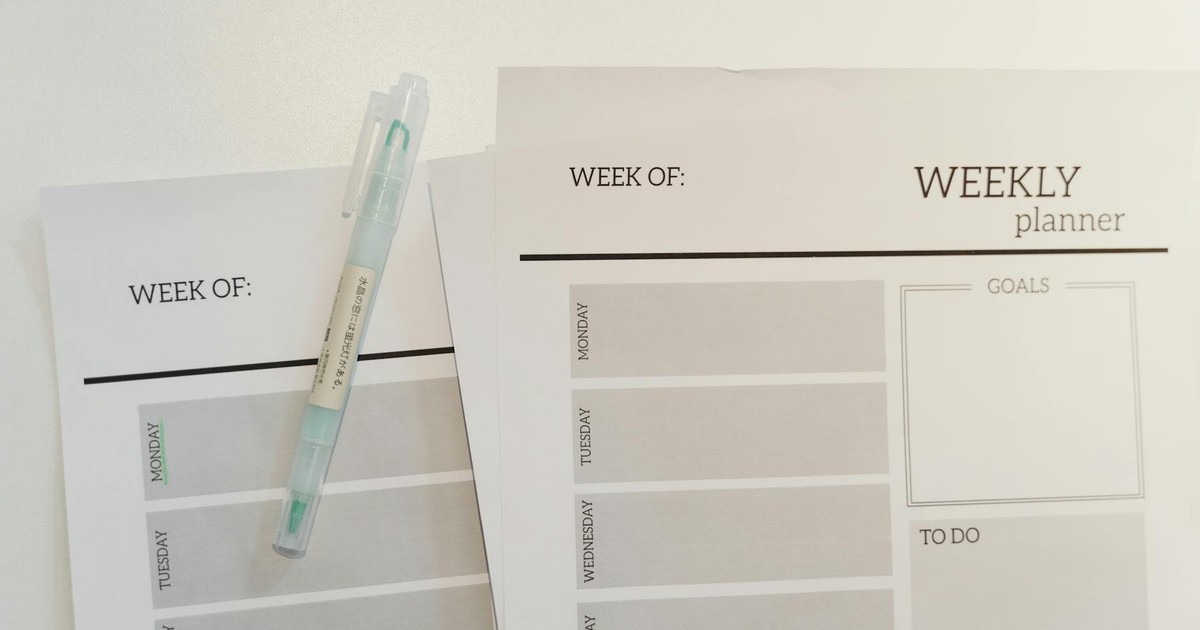
Structured is a daily planner app that sits in a different lane from both a task manager and a calendar. Rather than a flat list of to-dos, it gives you a visual timeline of your day. You block out time for specific activities – a meeting at 10, a writing session from 11 to 1, a break at 2 – and the app maps them visually so you can see where the day is actually going. The widget brings that timeline to your home screen so you’re not constantly opening the planner to re-orient yourself.
The best iPhone productivity widgets in 2026 span productivity, health, and time management, and Apple has expanded widget capabilities across every major iOS release since iOS 14. Interactive widgets arrived in iOS 17 and deeper placement options came in iOS 18, letting users act on reminders, toggle controls, and check live data without ever opening an app. Structured takes full advantage of this – the home screen widget shows your current or next time block at a glance, so you spend less of the day feeling like you’ve lost track of where it went. The app is free to download with a Pro upgrade available for recurring events and calendar sync.
The Widget That Actually Matters Is the One You’ll Use

It’s easy to spend an afternoon building the perfect home screen – every widget in its place, everything color-coordinated, a beautiful system that makes you feel like you’ve already done something. That feeling is temporary. The system that works is the one you keep coming back to on a Tuesday when you’re behind on email and the day has already gone sideways.
The honest answer to “which iPhone productivity widgets are the best?” is whichever two or three solve a problem you actually have right now. If distraction is the issue, Opal and MultiTimer. If you’re bad at capturing tasks in the moment, Todoist’s Add Task widget. If your days feel like a blur of activity with nothing to show for it, Toggl Track. If you’re running on empty, Calm. Start there, with one real problem, and add from the list when it’s solved.
A home screen full of productivity widgets is just wallpaper. A home screen with one widget you tap every day is a system.
AI Disclaimer: This article was created with the assistance of AI tools and reviewed by a human editor.