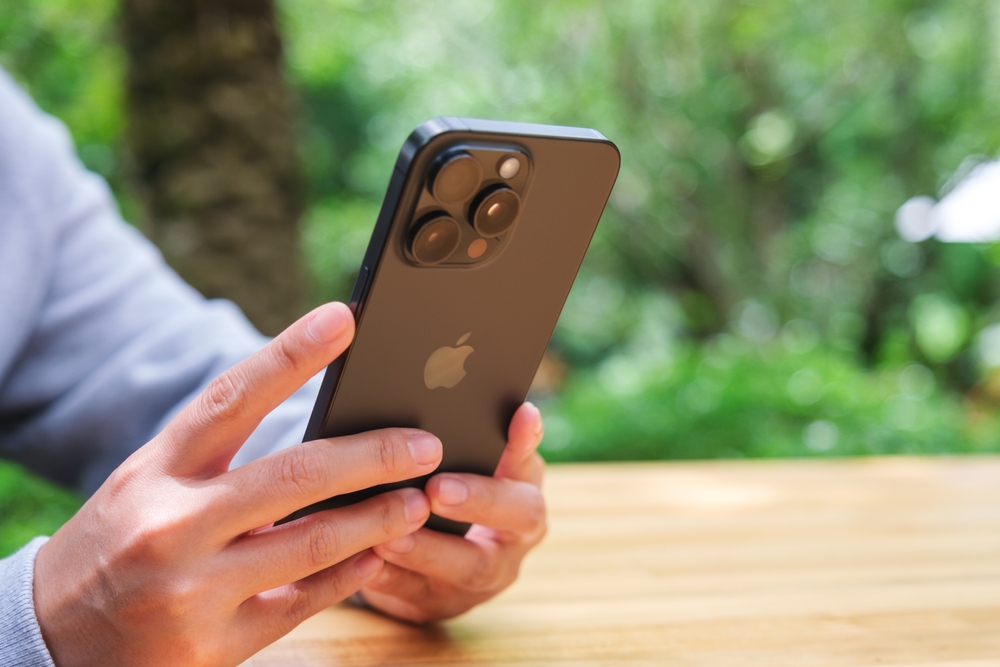

There is a small but real frustration that lives in the gap between owning a piece of technology and actually knowing how to use it. Most people who carry an iPhone have pressed the same two buttons on its side hundreds of times without once suspecting that those buttons are doing far less than they could. The volume buttons are treated like a light switch. Up for louder, down for quieter, and nothing else. That assumption is costing people time, convenience, and in a few cases, the kind of moment that does not come back.
What follows is not a list of obscure developer tricks that require a computer science degree. These are real, built-in features that Apple has quietly baked into iOS over several years, many of which surfaced or expanded with recent software updates. Some are practical shortcuts. Some are surprisingly elegant. And a few of them, once you know about them, will change the way you reach for your phone entirely.
Taking Photos Without Touching the Screen
The most commonly missed function is the simplest. When your iPhone camera is open, either volume button will trigger the shutter. You do not need to tap the screen. This matters more than it sounds. When you tap the screen to take a photo, there is a tiny physical moment of contact that can introduce blur, especially in lower light or when you are stretching to frame an unusual shot. Using the volume button gives your hand a more stable grip on the device and lets you press without disturbing the frame. Photographers have known for decades that reducing camera shake produces sharper images. Apple quietly built a version of that logic into the iPhone.
This also means you can take photos one-handed with reasonable control, holding the phone more like a traditional camera and pressing the volume-down button the way you would press an actual shutter release. Try it in portrait mode the next time the light is right, and you will immediately feel the difference in stability.
There is a related trick that takes this further. If you press and hold either volume button while the camera is open, your iPhone will shoot a burst of rapid-fire photos, capturing multiple frames per second. This is genuinely useful for photos of children, pets, sporting moments, or anything that moves in ways that are hard to predict. You then review the burst and select the sharpest frame. Apple introduced this behaviour several iOS versions ago, and a surprising number of people still do not know it is there.
Waking the Phone and Powering It Down
The volume buttons are not just for active use. They play a role in the basic on-off mechanics of the device, and this matters on the newer Face ID iPhones, where the side button works differently than the old home button models.
To power off any recent iPhone (the models without a home button, running Face ID), you press and hold the side button and either volume button at the same time. After a moment, a slider appears on screen allowing you to drag to power off. This two-button combination exists precisely because the side button alone no longer triggers a shutdown, which itself is a design choice to prevent accidental power-offs. The volume button is half of that safety equation.
There is a secondary version of this. Pressing and holding both the side button and either volume button for a longer period bypasses the slider entirely and triggers an Emergency SOS call. This is covered in more detail shortly, but the physical logic is worth understanding: Apple designed the volume buttons as co-pilots to the side button, not independent controls.
On older iPhone models with a home button, pressing the side button and the volume-down button together will still take a screenshot, which leads to the next point.
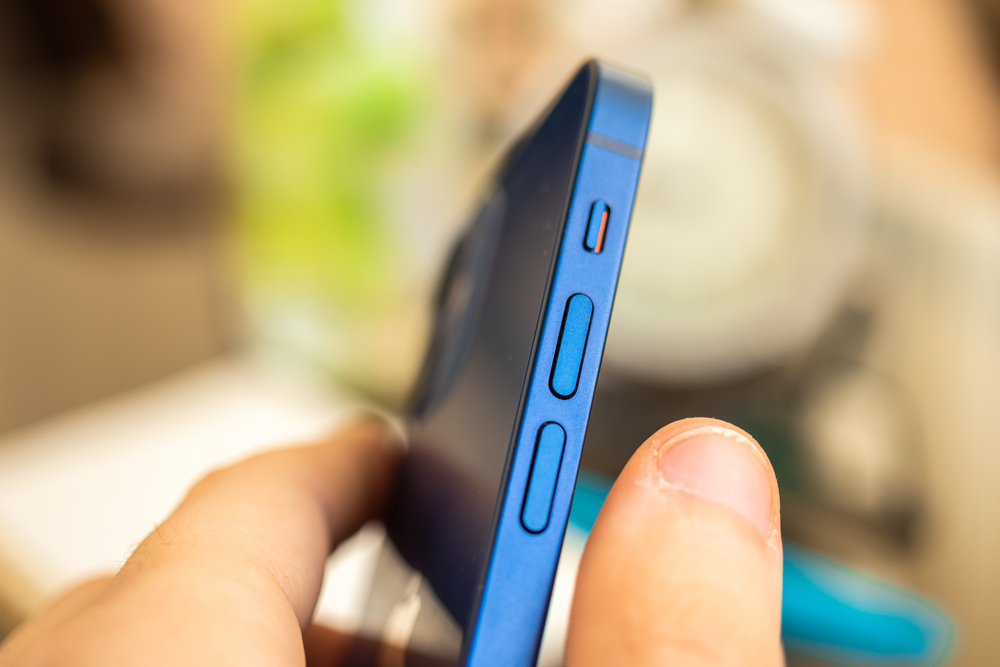
Screenshots with One Less Awkward Reach
On Face ID iPhones, the screenshot shortcut is the side button and the volume-up button pressed simultaneously. This is mildly awkward until it becomes muscle memory, and then it feels completely natural. The volume-up button is involved here because it is physically adjacent to where your thumb rests naturally when you are holding the phone in landscape orientation or two-handed.
The screenshot itself is nothing new, but the button combination is worth drilling into habit because it is faster and more reliable than trying to use Siri or a screen gesture. If you are reading something, capturing a receipt, saving a conversation, or keeping a reference image, the two-button press gets it done in under a second without interrupting what is on screen.
Emergency SOS: The Feature That Can Save a Life
This one deserves serious attention. On any iPhone with Face ID, pressing and holding the side button and either volume button will, after a few seconds, bring up the Emergency SOS slider along with the power-off slider and a Medical ID slider. If you keep holding the phone, it will automatically call emergency services and emit a loud alarm.
On older iPhones, rapidly pressing the side button five times in quick succession triggers the same Emergency SOS function. Apple has refined this across different iOS versions and device generations, but the volume button combination for newer models is the more intuitive physical action in a moment of genuine stress. Your hands do not need to be precise. You just squeeze the side of the phone.
This feature will also, if you have set it up in advance, send your location to emergency contacts you have designated. The setup for this lives in the Settings app under Emergency SOS. Taking five minutes to configure it properly is one of those things that feels unnecessary until the one moment when it is not. Apple has promoted this feature in its own advertising, and several documented real-world cases have involved people using it in car accidents and other emergencies where dialing was not possible.
Silencing Calls and Alarms Without Looking
Here is something that requires no setup and works immediately: when your iPhone is ringing, pressing either volume button once will silence the ring without sending the call to voicemail. The phone keeps ringing on the other end. You are just muting your side of the noise, buying yourself a few more seconds to decide whether you want to answer.
This is genuinely useful in meetings, waiting rooms, or any situation where a ringing phone is suddenly embarrassing. You do not need to find the decline button on the screen. You do not need to see the phone at all. A single press of either volume button does the job. The same logic applies to your morning alarm. Pressing either volume button will snooze it without your needing to squint at the screen to find a specific button.
Older phones with home buttons could also trigger the camera flash as a notification alert, but the volume button interaction for silencing calls is consistent across essentially every iPhone model for the past several years and works exactly the same way regardless of which version of iOS you are running.
Controlling Video Recording
The camera shortcut extends beyond still photos. When you switch to video mode in the Camera app, pressing the volume-up button starts recording. Pressing it again stops it. This means you can begin and end a video clip with a physical button press rather than a tap on screen, which reduces the chance of the camera wobbling at the start of a recording.
There is a subtlety here worth knowing. Apple added a feature called QuickTake that allows you to be in Photo mode (not Video mode) and still record a quick video clip by pressing and holding the volume-up button. The camera records for as long as you hold the button. Release it, and recording stops. This is designed for spontaneous moments when you want to grab video without the extra step of switching modes. Slide the shutter button to the right while holding, and it locks into continuous video recording so you can let go of the button.
These interactions were refined significantly in recent iOS releases and represent Apple thinking carefully about how physical buttons can reduce friction in moments that unfold quickly.
Adjusting Volume in Ways You Probably Overlook
The obvious use – adjusting volume – has more depth than most people realise. Your iPhone manages several separate audio channels, and the volume buttons do not always control the same one. This creates a small source of confusion that is worth clearing up.
When you are not playing music or a video, pressing the volume buttons adjusts the ringer and alerts volume. But once audio is playing, the buttons shift to controlling media volume. These are independent settings. You can have your media volume cranked high and your ringer set to nearly silent, or the reverse. If you go into Settings, then Sounds and Haptics, you can toggle whether the volume buttons affect the ringer at all, or lock the ringer to a fixed volume that the buttons cannot change.
This matters for people who are constantly surprised to find their ringer volume changed without meaning to change it. The culprit is usually pressing the volume buttons while music is paused but a streaming app is still technically active in the background. Understanding the channel separation lets you set things deliberately rather than wondering why your ringer has gone quiet again.
For those who use hearing aids or assistive audio devices, this distinction becomes even more important. Apple’s accessibility options, which sit in Settings under Accessibility and then Audio/Visual, allow for significant customisation of how audio output is managed, including the ability to lock volume levels to protect hearing. The company has put genuine work into these features in recent iOS versions, and the volume buttons interact with all of them.
Using Volume Buttons to Confirm Apple Pay
This one catches people off guard the first time it happens. When you use Apple Pay to make a purchase, Face ID iPhones ask you to authenticate by looking at the phone. But the confirmation step – the actual “yes, proceed with payment” action – is completed by double-pressing the side button, not by a volume button. However, if Face ID is not available, has failed, or if you are using an older Touch ID model, the volume buttons can come into play during authentication in unexpected ways depending on your device configuration.
The reason this is worth including is that many people fumble the Apple Pay interaction because they do not understand which physical button is doing what. Knowing that the side button is the payment confirmation key, and that the volume buttons can accidentally trigger other interactions during this process, helps you move through a checkout transaction without hesitation or error.
The Shortcut to Accessibility Features
iOS has a feature called Accessibility Shortcut, which can be configured in Settings under Accessibility, then General, then Accessibility Shortcut. When set up, this feature activates by triple-pressing the side button. But volume buttons are connected to this ecosystem in a way that is easy to miss.
If you turn on Switch Control – an accessibility feature designed for people who have difficulty using the touchscreen directly – the volume buttons can be configured to act as switches, replacing or supplementing screen interaction. This is primarily relevant for users with motor impairments, but knowing it exists speaks to how deeply Apple has integrated the physical buttons into the operating logic of the device.
For users who just want a faster route to features like Zoom, Colour Filters, or Reduce Motion, the Accessibility Shortcut provides a quick path, and the volume buttons can be part of that pathway depending on how your device is set up.
Locking Focus and Exposure During Photos
Camera apps on iPhones allow you to tap the screen to set the focus point before taking a photo. But there is an underused interaction that connects this to the volume buttons. Once you tap to set focus and lock it – holding your tap down until the “AE/AF Lock” indicator appears – you can then use the volume button shutter without disturbing that focus lock. The lock stays in place.
This means you can compose a shot precisely, lock the focus on exactly the thing you want sharp, and then press the volume button to capture without risking a tap that might accidentally reset your focus point. For anyone who has tried to photograph something specific against a busy background and watched the camera keep refocusing on the wrong thing, this combination offers real creative control.
It is the kind of feature that professional photographers appreciate, built into a consumer device and accessible to anyone willing to spend two minutes understanding how it works.
The Volume Button and AssistiveTouch
AssistiveTouch is an on-screen virtual button that replicates many hardware functions for users who find physical button presses difficult. But its relationship with the volume buttons runs both ways. When AssistiveTouch is active, you can assign custom actions to volume button presses through the shortcut settings. This effectively means the volume buttons can be remapped to do things that have nothing to do with volume at all.
This is a deep customisation option that most users will never need to touch. But for someone managing a repetitive strain injury, recovering from hand surgery, or simply trying to reduce unnecessary physical interaction with the device, knowing that the buttons are programmable at this level is useful. Apple’s own accessibility documentation covers this in detail, and the iOS Accessibility features have been consistently praised by disability advocacy groups for the depth of their implementation.
Checking Your iPhone’s Volume Without Unlocking
One last detail that sits in plain sight: pressing either volume button when the screen is locked or sleeping wakes the screen briefly and shows you the current volume level without unlocking the phone. You do not need Face ID or a passcode for this. The screen lights up, a volume indicator appears, and you can adjust up or down without entering the device at all.
This is useful at night, in a darkened cinema, or anytime you need to make a quick audio adjustment and the idea of going through a full unlock process is more inconvenience than the moment warrants. It respects the small rhythms of daily life, which is precisely the kind of invisible design work that Apple is genuinely good at when it is paying attention.
The volume buttons on your iPhone are not a simple toggle. They are a physical interface layer with enough built-in logic to handle everything from emergency calls to professional-level photography control. Most people walk around with that capability sitting unused in their pocket, which is a quietly odd thing about the age of smartphones. The tools are already there. It just takes a moment to find them.
Disclaimer: This article was written by the author with the assistance of AI and reviewed by an editor for accuracy and clarity.